

Why Use Any Video Converter to Save Audio as MP3?
Any Video Converter lets you extract high-quality audio from videos on YouTube, Facebook, TikTok, and other supported sites. It can also download audio directly from platforms such as YouTube Music, SoundCloud, Mixcloud, and Bandcamp. You can save supported content as MP3, AAC, FLAC, or WAV and select the available audio quality.
- Batch and playlist downloads. Add a playlist URL or multiple URLs for batch processing.
- Adjustable audio quality. Choose Best, Medium, or Low audio quality based on your needs.
- Built-in browser sign-in. Sign in through the built-in browser to download content available only to authorized subscribers or members.
- Automatic file renaming. Customize file-naming rules to keep your music library organized.
- Auto Download (Ultimate only). Monitor supported playlists or channels and automatically download newly added content.


How to Download and Convert YouTube Videos as MP3
Step 1 Add the Video URLs You Want to Save as MP3
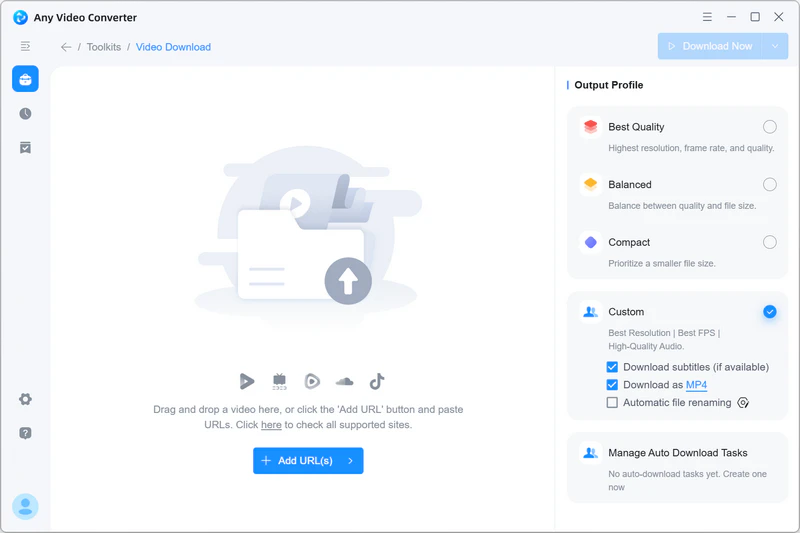
Open Any Video Converter, select the Video Download tool from the toolkit list, and click Add URL(s).
Paste the copied YouTube URL into the input box, and you can paste multiple URLs for batch processing. Then click Parse Now to start analyzing the URL and loading available media information.
Step 2 Choose MP3 and Adjust Audio Quality
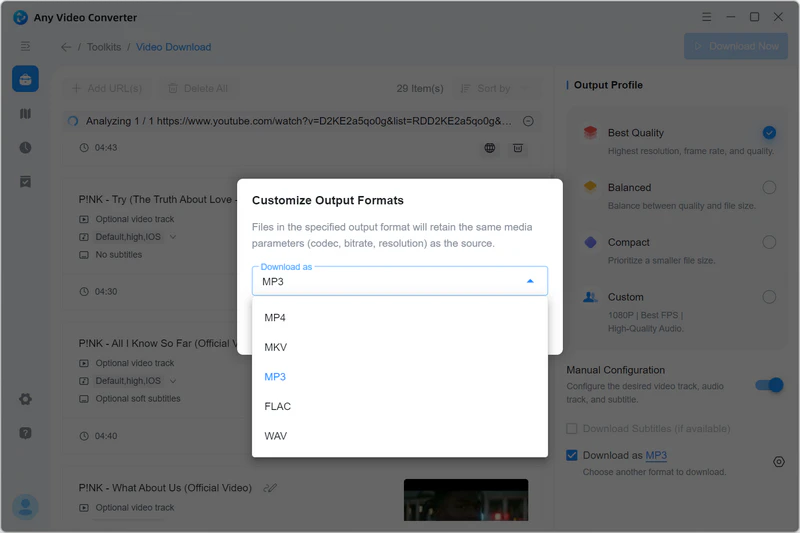
In the Output Profile on the right panel, choose Custom and click to open its settings; here you can change the Audio Quality to Best, Medium, or Low. Then choose the output format as MP3.

Optionally, enable Automatic File Renaming to apply consistent naming rules to downloaded tracks, especially when processing playlists.
Step 3 Start Converting YouTube Videos as MP3
Click Download Now to start converting YouTube videos to MP3.
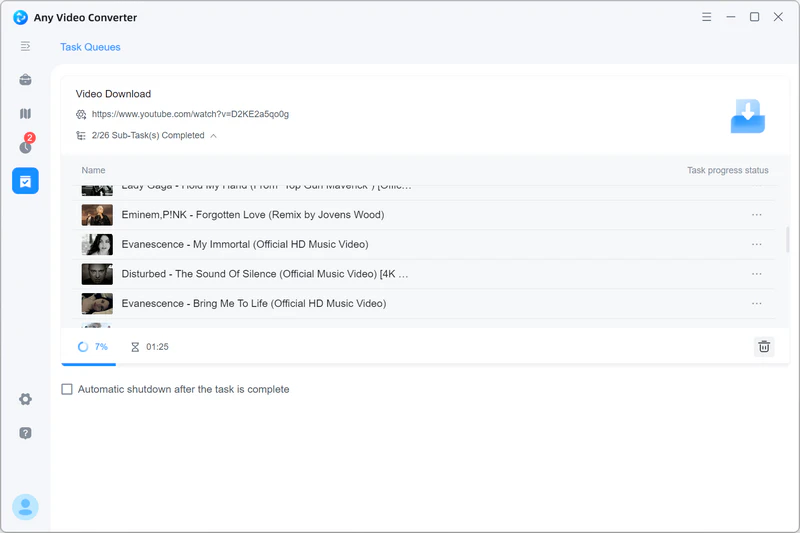
After the conversion is complete, go to the History tab and click  to open the file location, or click
  to send the MP3 files to another tool for further editing. For example, you can open them in the Merge Audio or the AI Audio Splitter tool.