


Most Asked Questions about Any Video Converter
Q1: I paid, but I didn't receive my license code. What should I do?
Your license code is emailed as soon as the order goes through. As automated messages are sometimes filtered, check your inbox first, then your spam or junk folder.
If it isn't there, contact [email protected] and include your purchase email address, order ID, and receipt. We'll resend it.
Q2: My license is invalid. What should I do?
Two common causes:
- The license code contains extra spaces. License details are case-sensitive, and codes are long enough that retyping invites errors — paste it in, then check that no space was picked up at the start or end.
- A code from an older version. V7 and earlier codes won't register the current version. Contact [email protected], and we'll upgrade your license at no charge.
Q3: I bought the wrong product. Can I exchange it?
Yes. Contact support with the order ID and ask for an exchange. If you need the correct product right away, buy it and send us both order IDs, and we'll refund the wrong one. See our refund policy for full terms.
Q4: Can I get a refund?
Refunds and exchanges are available within 5 days for monthly and yearly subscriptions, and 30 days for lifetime license. After that, we can't process them. Full details are in our refund policy.
Q5: I bought Pro or Ultimate. Which version of Any Video Converter should I download?
There's only one installer now. Download Any Video Converter, then enter your Pro or Ultimate license to unlock.
Q6: Why do I have to register the program every time?
Two common causes:
- Installed without administrator privileges. The program reverts to trial mode when you log off. Right-click the setup file, choose Run as administrator, enter the administrator password, and reinstall.
- Multiple network adapters. Registration is tied to your machine's hardware ID, which is derived from the network adapter. If your computer has several — a second physical card, Wi-Fi plus Ethernet, or virtual adapters from VPN or virtualization software — the ID can change between sessions and invalidate the registration.
Try disabling the adapters you don't use in Device Manager → Network adapters. If the problem continues, contact [email protected], and we'll sort out the registration for you.
Q7: Can I use one license on several computers?
Each license covers one computer. If you need to run Any Video Converter on multiple machines, contact [email protected] about a commercial license.
Q8: Does Any Video Converter include free updates?
That depends on your license:
- Subscriptions include all updates for as long as your plan is active.
- Perpetual licenses include all [V9.x] releases.
- Free version users can always update to the latest release.
- Using V7 or earlier? Free users can update to the current release. If you had a V7 Pro or Ultimate license, contact support and we'll upgrade both your software and your license at no charge.
Q9: Which versions of Windows and macOS are supported?
The current version supports Windows 10 (64-bit) and 11, and macOS 12 and later.
For older systems, we maintain legacy builds:
Legacy versions don't receive updates or new features.
Q10: Does Any Video Converter support my language?
We're expanding language support based on what customers ask for, so let us know which one you'd like.
If you're a native speaker and would like to help translate Any Video Converter, contact support, and we'll give you a free license of your choice as a thank-you.
Purchase & Billing FAQs
Q1: Is it safe to buy Any Video Converter online?
Yes. Orders are processed by established e-commerce providers over an encrypted connection, and we don't store your card details.
Q2: What payment methods do you accept?
We offer numerous customer payment options, including PayPal, Alipay, and major cards including Visa, MasterCard, American Express, Discover, Diners Club, and JCB.
Q3: Can I get a refund?
Refunds and exchanges are available within 5 days for monthly and yearly subscriptions, and 30 days for lifetime license. After that, we can't process them. Full details are in our refund policy.
Q4: Does the price include VAT?
Prices are shown excluding VAT. Depending on your country, tax may be added at checkout. The final amount is displayed before you confirm the order.
Q5: I was charged twice. What should I do?
Duplicate charges usually come from a repeated order submission. Contact us with your order details, and we'll refund the duplicate one.
Q6: How do I cancel a recurring subscription?
You can cancel a monthly or annual subscription yourself by following our cancellation guide. Or contact support, and we'll take care of it.
License & Registration FAQs
Q1: I paid, but I didn't receive my license code. What should I do?
Your license code is emailed as soon as the order goes through. Automated emails may sometimes be filtered by your email provider, so please check your spam or junk folder if you don't see the email in your inbox.
If it isn't there, contact [email protected] and include your purchase email address, order ID, and receipt. We'll resend it.
Q2: How do I register Any Video Converter?
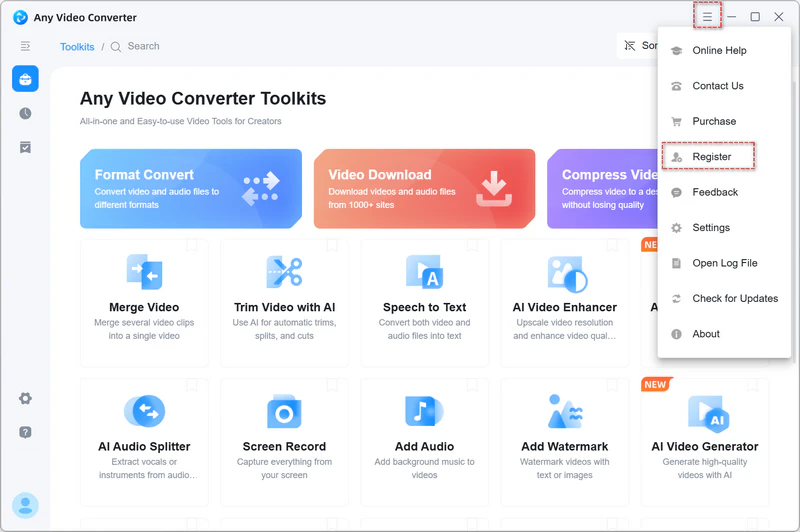
Make sure you have the current version of Any Video Converter installed, then launch it and click  in the top-right corner. Choose Register, enter the email address and license code from your confirmation email, and click Confirm.
Q3: My license is invalid. What should I do?
Two common causes:
- The license code contains extra spaces. License details are case-sensitive, and codes are long enough that retyping invites errors — paste it in, then check that no space was picked up at the start or end.
- A code from an older version. V7 and earlier codes won't register the current version. Contact [email protected], and we'll upgrade your license at no charge.
Q4: I purchased the wrong license. What can I do?
Contact support with your order ID, and we'll arrange an exchange — this applies whether you bought the wrong platform (Windows instead of Mac) or the wrong edition (Pro instead of Ultimate).
If you need the correct license right away, buy it and then send us both order IDs. We'll refund the incorrect one.
Q5: Does one license work on both Windows and Mac?
No. Windows and Mac licenses are separate, so a Windows license won't register on the Mac version. If you need both, you'll need a license for each.
Q6: Can I use one license on several computers?
Each license covers one computer. If you need to run Any Video Converter on multiple machines, contact [email protected] about a commercial license.
Q7: My license stopped working after I updated. Why?
This usually means you're using a license from V7 or earlier, which won't register with the current version. Contact [email protected], and we'll upgrade your license at no charge.
Q8: What should I do if I lose my license code?
Email [email protected] to request your license. Include whatever purchase details you have — the email address you ordered with, your order ID, or the receipt.
Q9: Why do I have to register the program every time?
Two common causes:
- Installed without administrator privileges. The program reverts to trial mode when you log off. Right-click the setup file, choose Run as administrator, enter the administrator password, and reinstall.
- Multiple network adapters. Registration is tied to your machine's hardware ID, which is derived from the network adapter. If your computer has several — a second physical card, Wi-Fi plus Ethernet, or virtual adapters from VPN or virtualization software — the ID can change between sessions and invalidate the registration.
Try disabling the adapters you don't use in Device Manager → Network adapters. If the problem continues, contact [email protected], and we'll sort out the registration for you.
Installation & Uninstallation FAQs
Q1: I get an "Install failed" error. How do I fix it?
This usually happens when there is a network interruption or a problem extracting the files. Try the offline installer instead. It downloads everything in one file, so there's nothing to fetch mid-install.
Q2: How do I uninstall Any Video Converter?
Follow our uninstall guide, which covers removing the program along with its components and saved settings.
Q3: AI model or component downloads keep failing. How do I fix it?
There are two common causes:
-
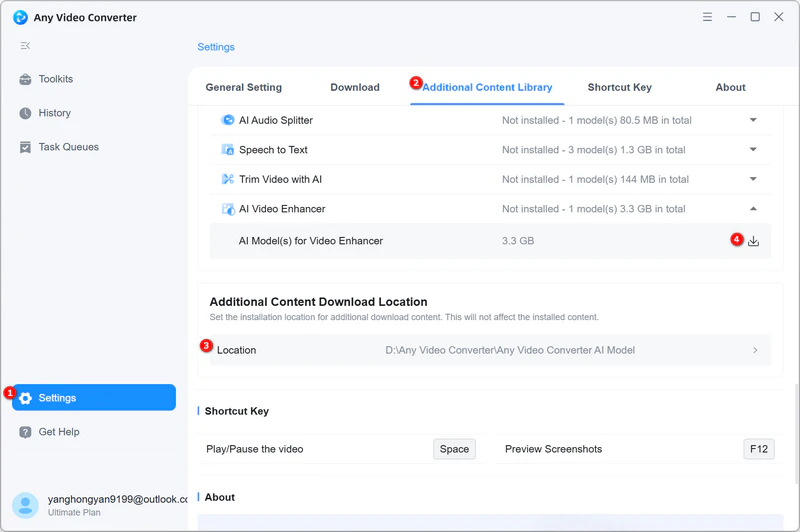
The save location isn't a local drive. AI models and components can't be stored on OneDrive, network locations, or external drives. Go to Settings → Additional Content Library and choose a folder on your internal drive.
- The program doesn't have permission to write to that folder. You'll need to grant access.
For Windows:
- Right-click the folder and select Properties.
- Open the Security tab and click Edit.
- Select your username or group, then check Allow for Full Control.
- Click Apply, then OK.
For Mac:
- Right-click the folder and choose Get Info.
- Expand Sharing & Permissions.
- Click the lock icon and enter your administrator password.
- Use the menu next to your username to set Read & Write.
- Click the gear menu and select Apply to enclosed items.
Updates & Upgrades FAQs
Q1: Does Any Video Converter include free updates?
That depends on your license:
- Subscriptions include all updates for as long as your plan is active.
- Perpetual licenses include all [V9.x] releases.
- Free version users can always update to the latest release.
- Using V7 or earlier? Free users can update to the current release. If you had a V7 Pro or Ultimate license, contact support and we'll upgrade both your software and your license at no charge.
Q2: I'm on V7 and the current version is V9. Should I update?
We'd recommend it. There's no in-place upgrade path, so you'll need to download and install V9 separately.
V9 is a rebuild. The interface and workflow are quite different from V7, but it includes everything V7 did, plus the newer tools. If you hold a V7 Pro or Ultimate license, contact support and we'll upgrade it at no charge.
If you'd rather stay on V7, you can keep both installed. Choose a different install folder for V9, or it will replace your existing version.
Q3: What's the difference between Free, Pro, and Ultimate?
- Free: video conversion, downloads, compression, and basic editing.
- Pro: advanced encoding controls, customized presets, custom downloads, and extra tools, including DVD Burner and Screen Recorder.
- Ultimate: AI tools, including AI Video Enhancer, Speech to Text, Smart Trim, and AI Audio Splitter, plus credits for the AI generators.
The version comparison table has the full breakdown.
Q4: Can I upgrade from Pro to Ultimate?
Yes. You can contact support with your Pro order ID, and we'll arrange the upgrade.
If you need Ultimate right away, you can buy it and then send us both order IDs, and we'll refund the Pro license.
DVD Conversion FAQs
Q1: How do I convert a DVD by title?
Title-based conversion is the default. Once the DVD structure has been analyzed, the program lists every title, and you can convert all of them or pick the ones you want.
Q2: Can I skip short DVD titles like intros, copyright screens, and trailers?
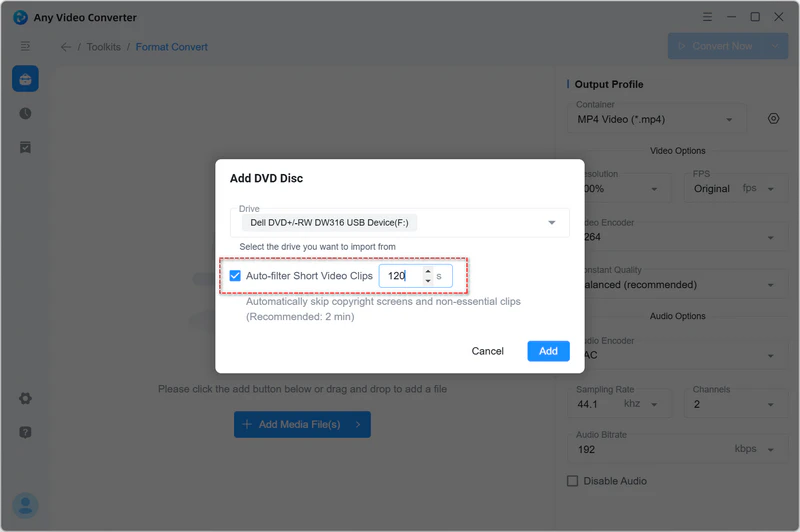
Yes. After adding the DVD, tick Auto-filter Short Video Clips, and the program will leave out menus, intros, trailers, and other short segments and only display the main title for conversion.
Q3: How do I choose the audio language for DVD conversion?
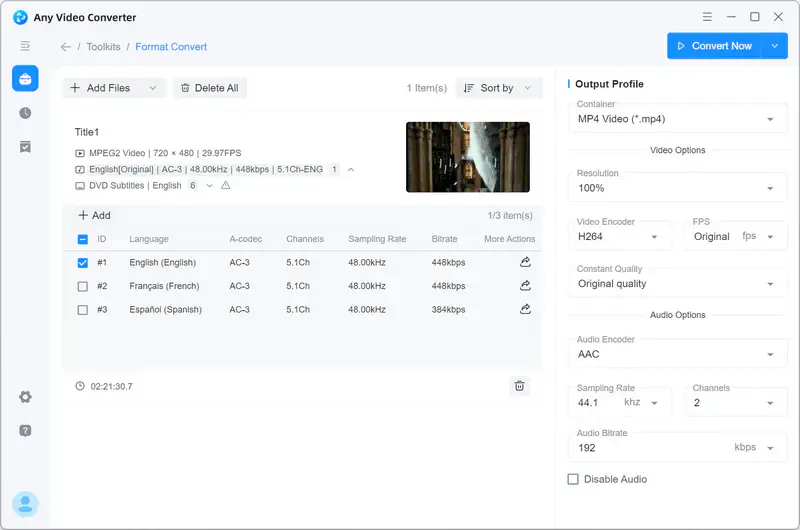
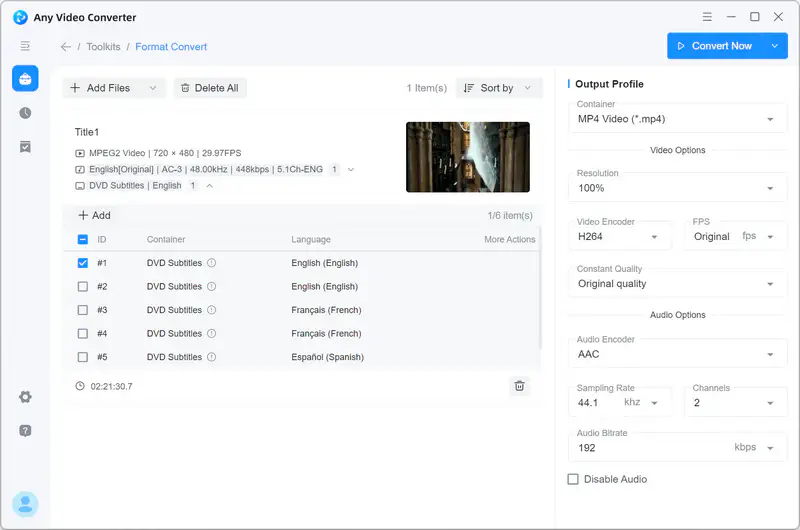
If the DVD has multiple audio tracks, click the audio track shown next to the title and pick your language from the list.
Q4: Can I choose which subtitles are included for DVD conversion?
Yes. Click the subtitle track next to the title and select the language you want.
Q5: Can Any Video Converter rip Blu-ray discs?
No. Any Video Converter supports DVDs but not Blu-ray discs.
Video Conversion FAQs
Q1: Can I remove the audio from a video?
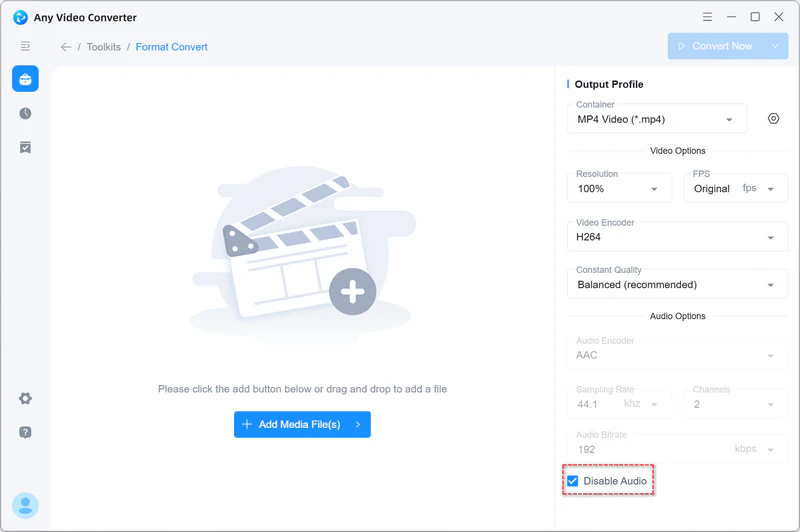
Yes. Add your video files to the Format Convert tool, then tick Disable Audio at the bottom of the right-hand panel.
Q2: How do I get better audio quality after video conversion?
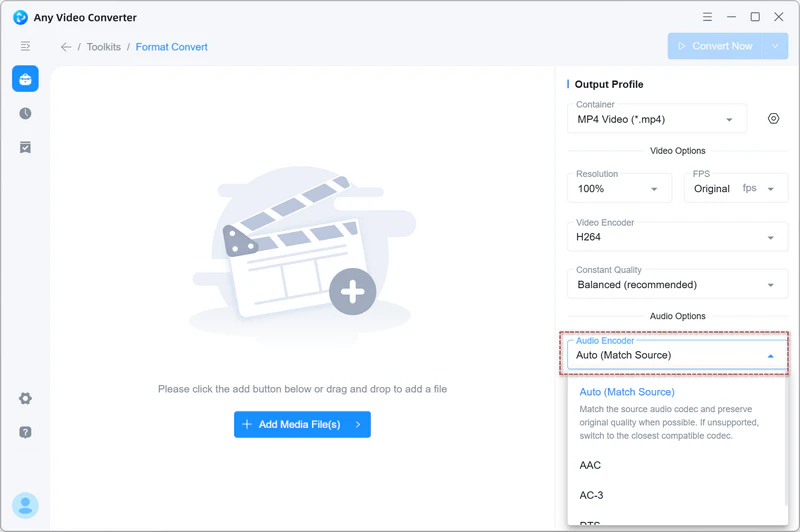
To preserve audio quality, use settings that match the source whenever possible. In Format Convert, set Audio Encoder to Auto (Match Source) to keep the original audio track without re-encoding. If you need to re-encode the audio, choose an appropriate bitrate and sample rate for the source.
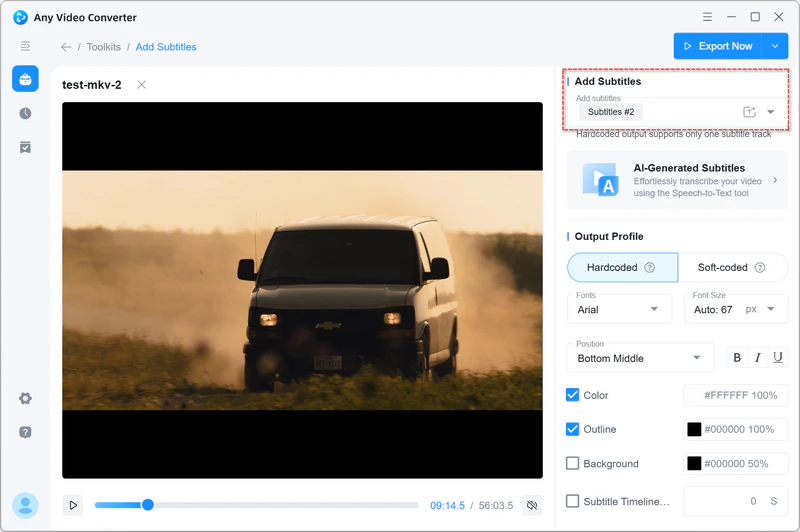
Q3: Can I add subtitles to a video?
Yes, in Any Video Converter, you have two ways to add subtitles to a video:
-
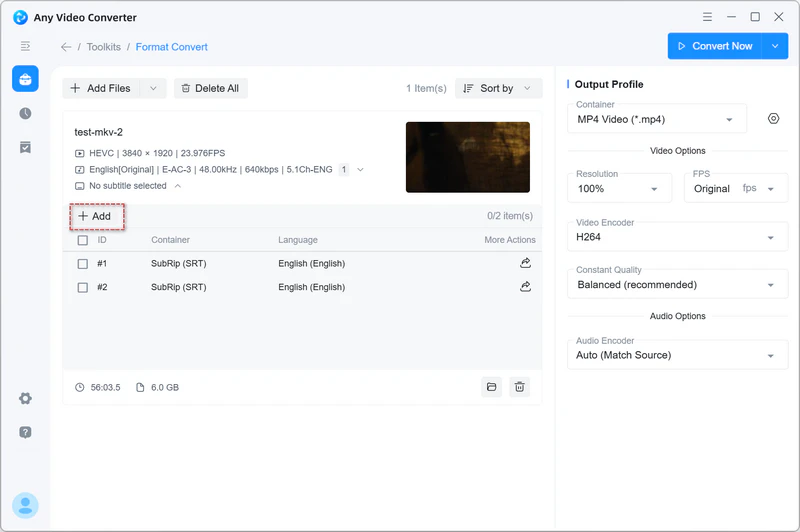
In the Format Convert tool. Add your video, click the subtitle track, then click + Add to add a subtitle file, then you can convert this video with subtitles.
-
In the Add Subtitles tool. Add your video, then click Add Subtitles in the right panel to add external subtitles. This tool also lets you choose between hardcoded and soft subtitles, and adjust font, size, position, outline, color, and background.
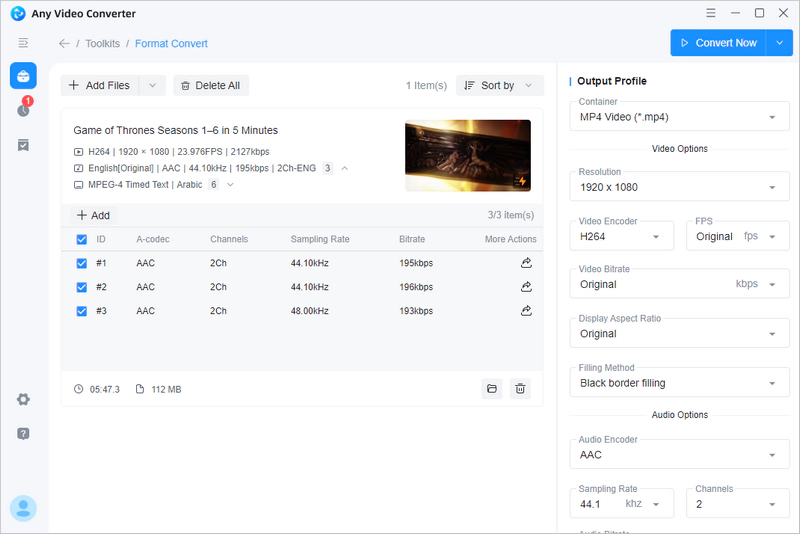
Q4: Can I choose which audio tracks to keep?
Yes. In the Format Convert tool of Any Video Converter, add your video, expand the audio tracks, and check the ones you want to keep.
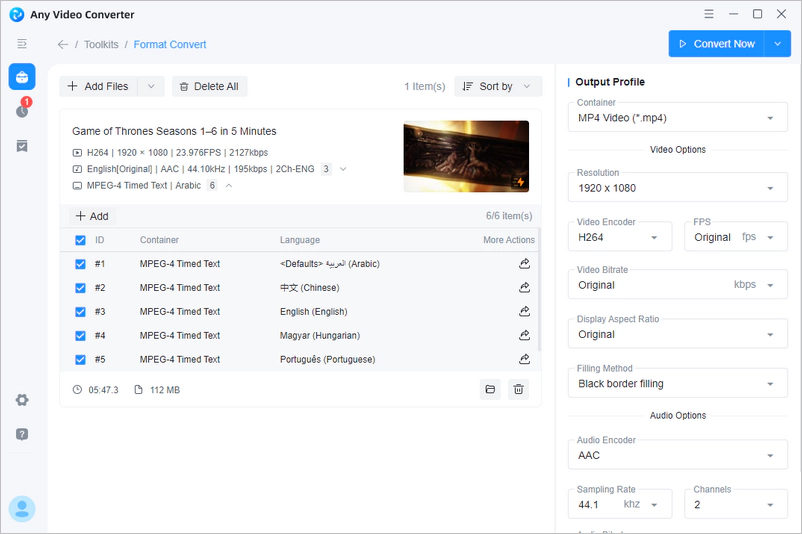
Q5: Can I choose which subtitle tracks to keep?
Yes. In the Format Convert tool of Any Video Converter, add your video, expand the subtitle tracks, and check the subtitles you want to keep.
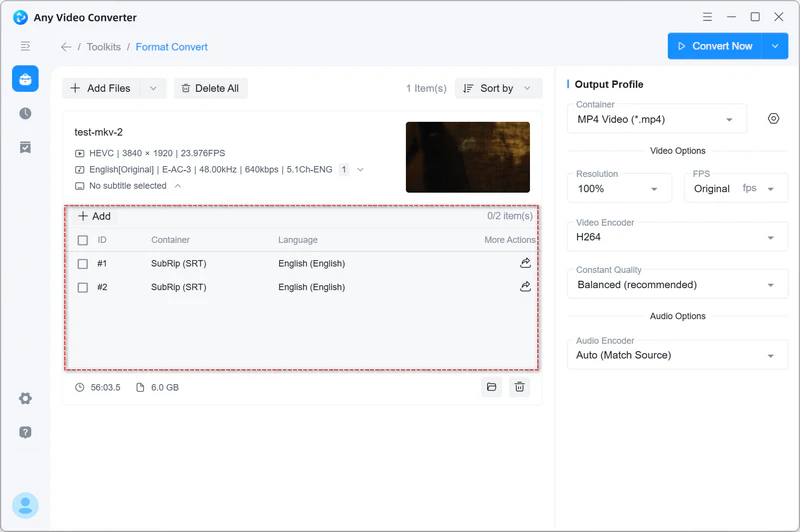
Q6: How do I remove subtitles from a video?
In Any Video Converter, you have two ways to turn off subtitles for a video.
-
Format Convert tool. Add your video, expand the subtitle tracks, and uncheck all of them before converting.
-
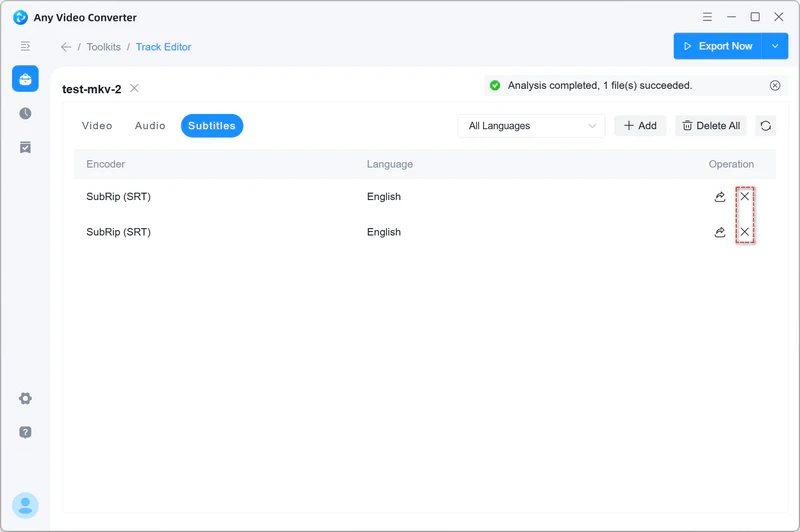
Track Editor tool. Add a video with existing subtitles, open the Subtitles tab, and click X to remove them. Exporting from here doesn't re-encode the video, so there's no quality loss.
Q7: How do I keep the output video the same frame size as the source?
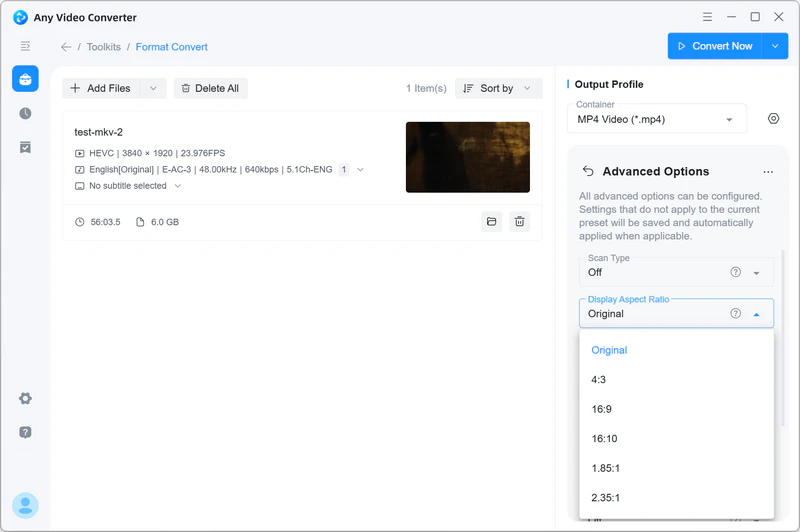
In the Format Convert tool of Any Video Converter, set Resolution to 100% in the Output Options panel. Then click  to open Advanced Options and set Display Aspect Ratio to Original.
Q8: My output files don't look good. How can I improve the quality?
Conversion can't improve the source quality, but the right settings can preserve as much of it as possible. In Any Video Converter, to keep as much of the source as possible: set Resolution to 100%, FPS to Original, Video Encoder to Auto (Match Source), and Constant Quality to Highest.
If the source itself is low quality, no encoder setting will fix that. Try the AI Video Enhancer tool in Any Video Converter, which upscales and clarifies footage rather than just re-encoding it.
Q9: Can Any Video Converter convert audio files?
Yes. It converts between audio formats including MP3, WMA, WAV, AAC, M4A, and OGG, and can extract audio from video files — both are free. If you're not at your computer, the online video to MP3 converter also helps.
Q10: How can I speed up video conversion?
You have two ways to speed up video conversion in Any Video Converter:
-
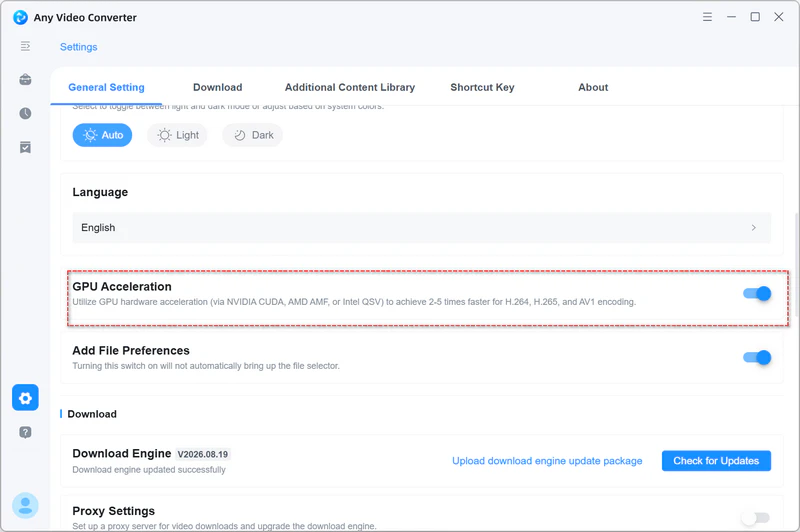
Enable GPU acceleration. If your hardware supports it, go to Settings → General Settings → GPU Acceleration and make sure it's on.
-
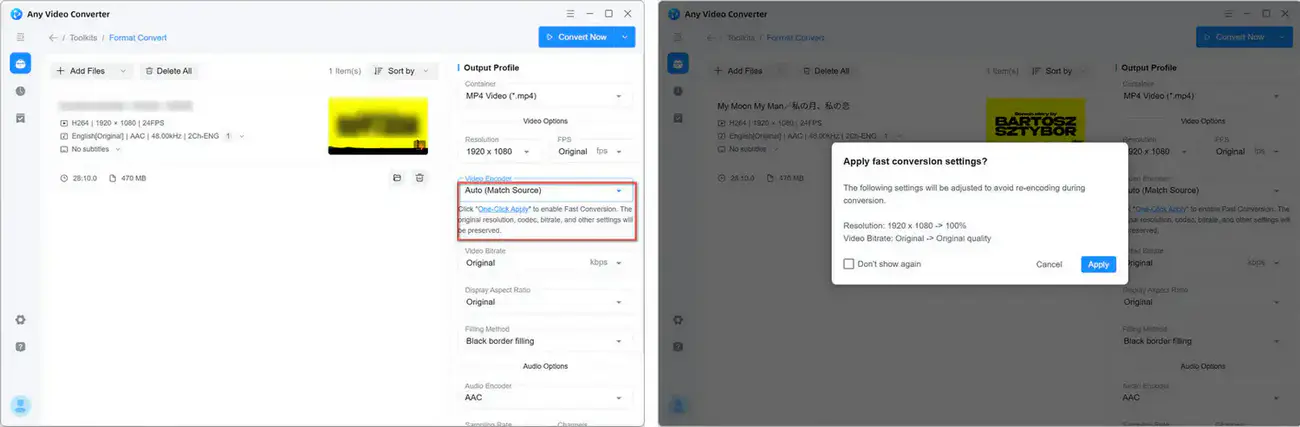
Use Fast Conversion mode. In the Format Convert tool, set Video Encoder to Auto (Match Source). This copies the video stream instead of re-encoding it, which is dramatically faster — up to 130x — and involves no quality loss.
Video Downloading FAQs
Q1: What should I do if a video site temporarily blocks my IP address?
This usually follows a burst of download requests. Platforms rate-limit addresses that make many requests in a short period. Restrictions are typically temporary. Pause your current downloads and wait before trying again. Spacing out requests rather than downloading in bulk will usually prevent it from recurring.
This troubleshooting guide covers this in more detail.
Q2: I get a "No permission to generate file" error while downloading. How do I fix it?
The program needs write access to rename its temporary file as the download completes. If it can't, the download fails.
Go to Settings → File Save Location, choose a folder you have write access to, and try again.
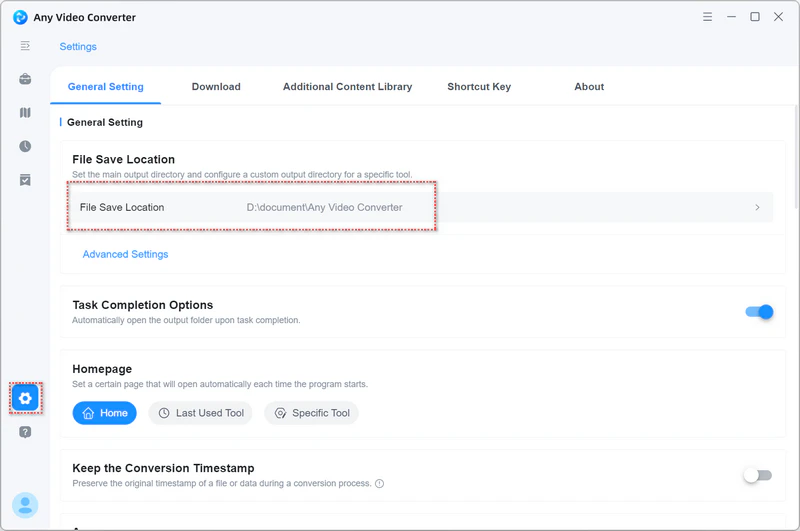
This download troubleshooting guide covers other causes and fixes if that doesn't resolve it.
Q3: Why do I need to sign in to download some videos?
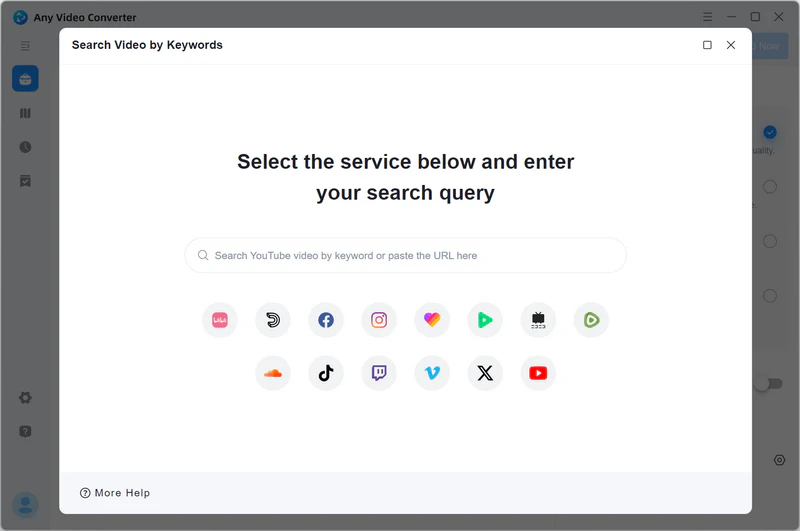
Some sites restrict access to certain videos, like age-restricted content or members-only material, and require a signed-in account to view them. To download these, sign in through Any Video Converter's built-in browser, then find the video and start the download.
How to sign in through the built-in browser
Q4: Can I download videos from sites other than YouTube?
Yes, over 1,000 sites are supported, including Facebook, X, Vimeo, Dailymotion, Reddit, Vevo, Niconico, etc.