logo

"Any Video Converter is easy and simple to use! For music and video files. My favorite feature is converting video files into MP3 format."

trustpilot review

"Any Video Converter stands out as a comprehensive tool, offering video conversion, editing, audio extraction, and advanced features, catering to a wide spectrum of user needs."

download cnet review
  • star
  • star
  • star
  • star
  • star

Loved by Over 630 Million Customers

Read More Reviews more

Features User Guide Version Compare FAQ Tech Spec
extract audio from video

Extract Audio from Video Formats for Music and Podcasts

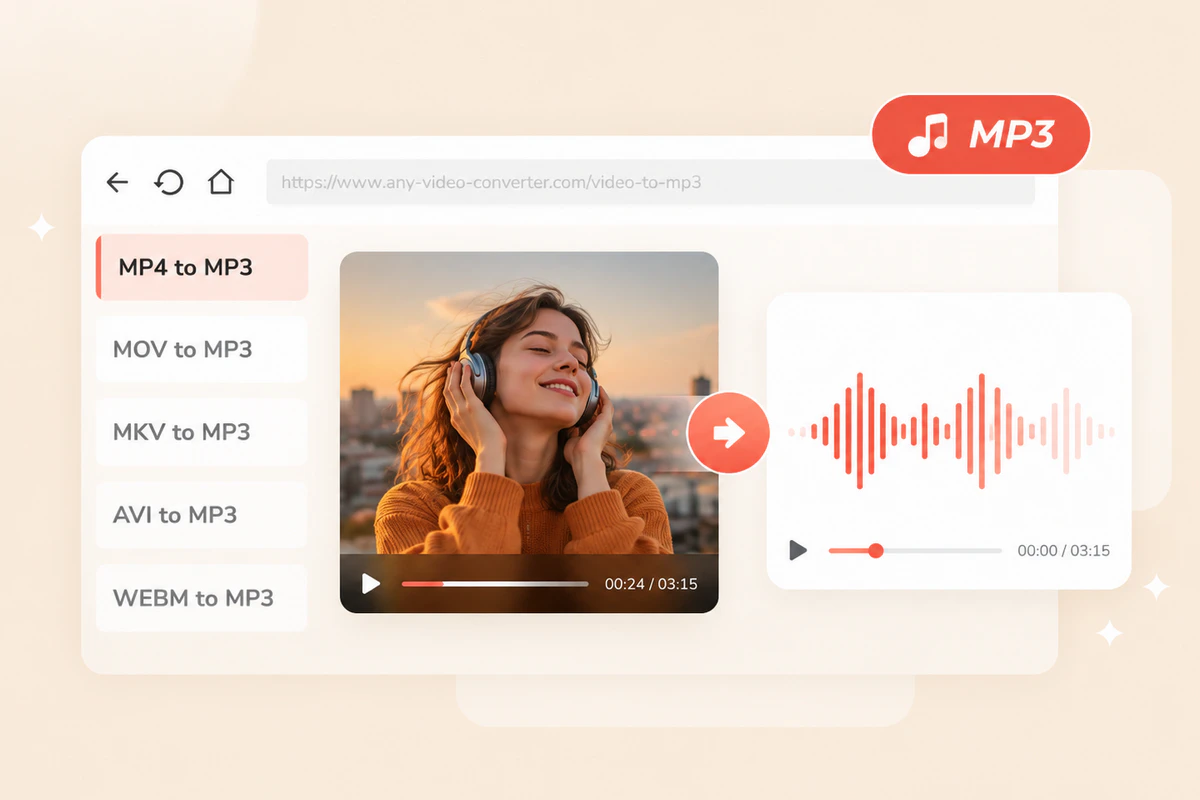
Converting video to MP3 is an effective way to extract high-quality audio from various video formats, including MP4, MKV, MOV, AVI, WebM, VOB, and more. This allows you to enjoy audio content like music, podcasts, interviews, and lectures on the go. Additionally, it enables you to extract specific audio, such as background music or sound effects, for use in creative projects like video editing, podcasts, or remixes.

Video to MP3 Converter with Batch and Fast Conversion

If you've downloaded an entire playlist or video collection from the internet, converting them to MP3 can help expand your music libraries, collections, and playlists. With Any Video Converter, you can batch convert your entire video library or collection to MP3 at speeds up to 60x faster. Even the free version allows unlimited conversions and fast processing.

convert video to mp3
convert video to mp3 without losing qulaity

Convert Video to MP3 without Losing Original Quality

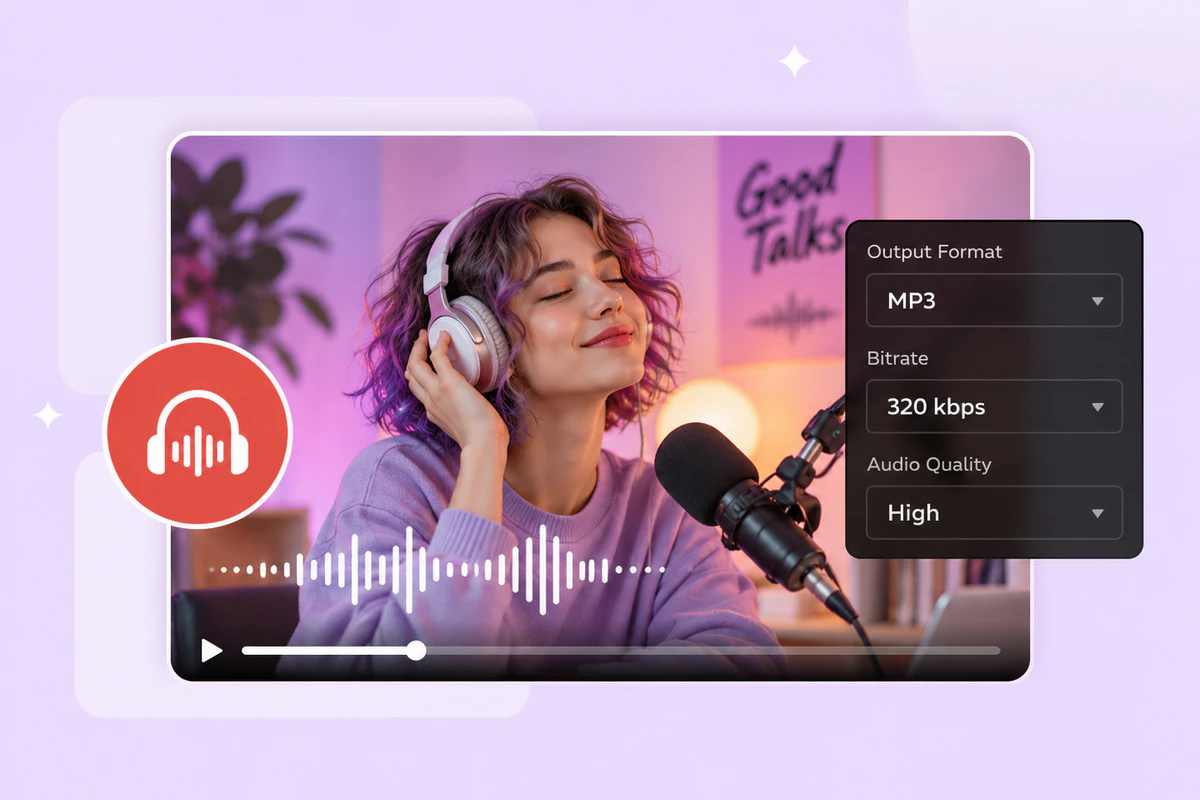
Any Video Converter is a widely used tool that allows users to convert video to MP3 while preserving audio quality. This video to MP3 converter supports a wide range of video input formats and provides customizable settings, such as adjusting the bitrate and sample rate, to help maintain optimal audio quality during the conversion process. Whether you’re converting music videos, lectures, or any other type of content, Any Video Converter is a reliable choice for achieving excellent MP3 output.

Convert Entire Video or Specific Video Segments to MP3

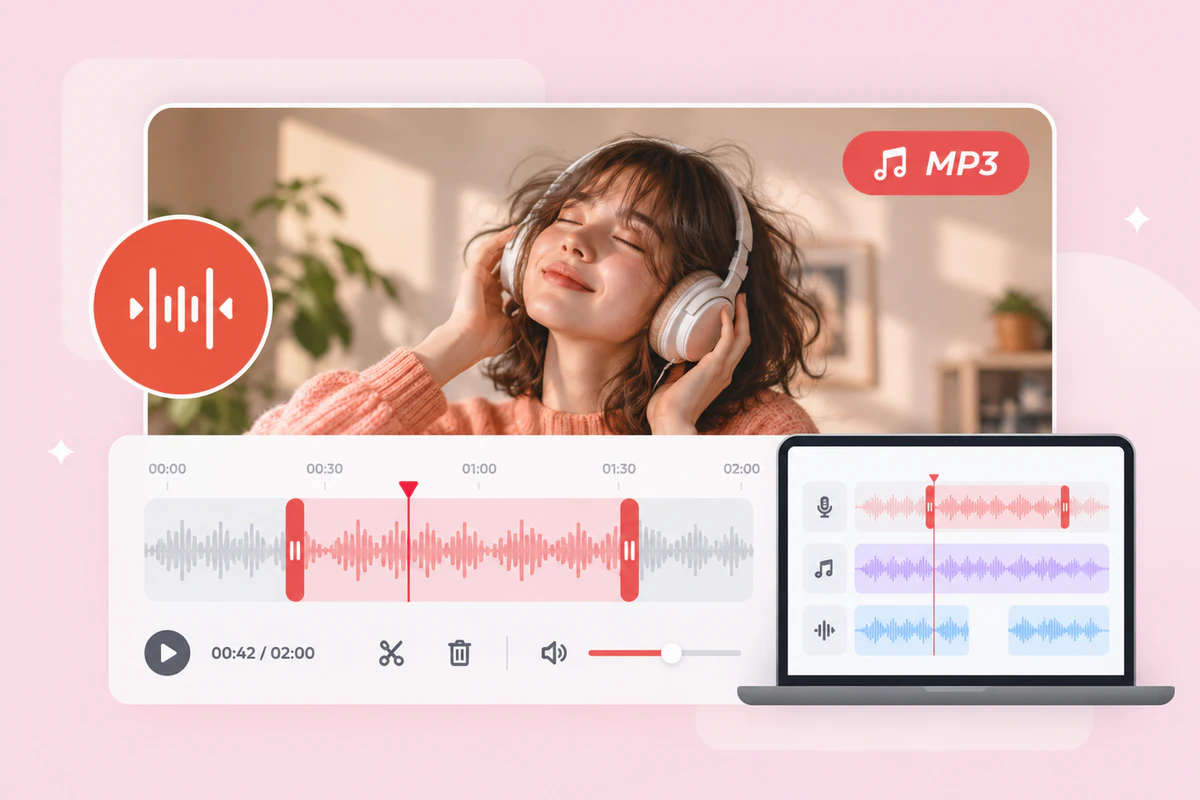
If you only need audio from a specific segment of a video, Any Video Converter allows you to trim the video before converting it to MP3. This is ideal for situations where you want to extract a particular part of the video, such as isolating your favorite section from a music video to use as a ringtone or extracting key moments from a lecture or speech. By trimming the video first, you can ensure that only the desired audio is converted, saving time and preserving the focus on the part of the video you want.

extract segments from video to mp3

Why Choose this Video to MP3 Converter

free video to mp3 converter
Totally Free

It is a freeware to let you convert video to MP3 without any limitations.

convert online videos to mp3
Support Online Videos

It also supports directly converting videos from popular sharing sites to MP3.

workflow tool
Workflow

Combine the available tools into the workflow to streamline the video processing.

How to Convert Video to MP3 for Free | Step-by-Step Guide

Step 1: Add Video Files to Any Video Converter

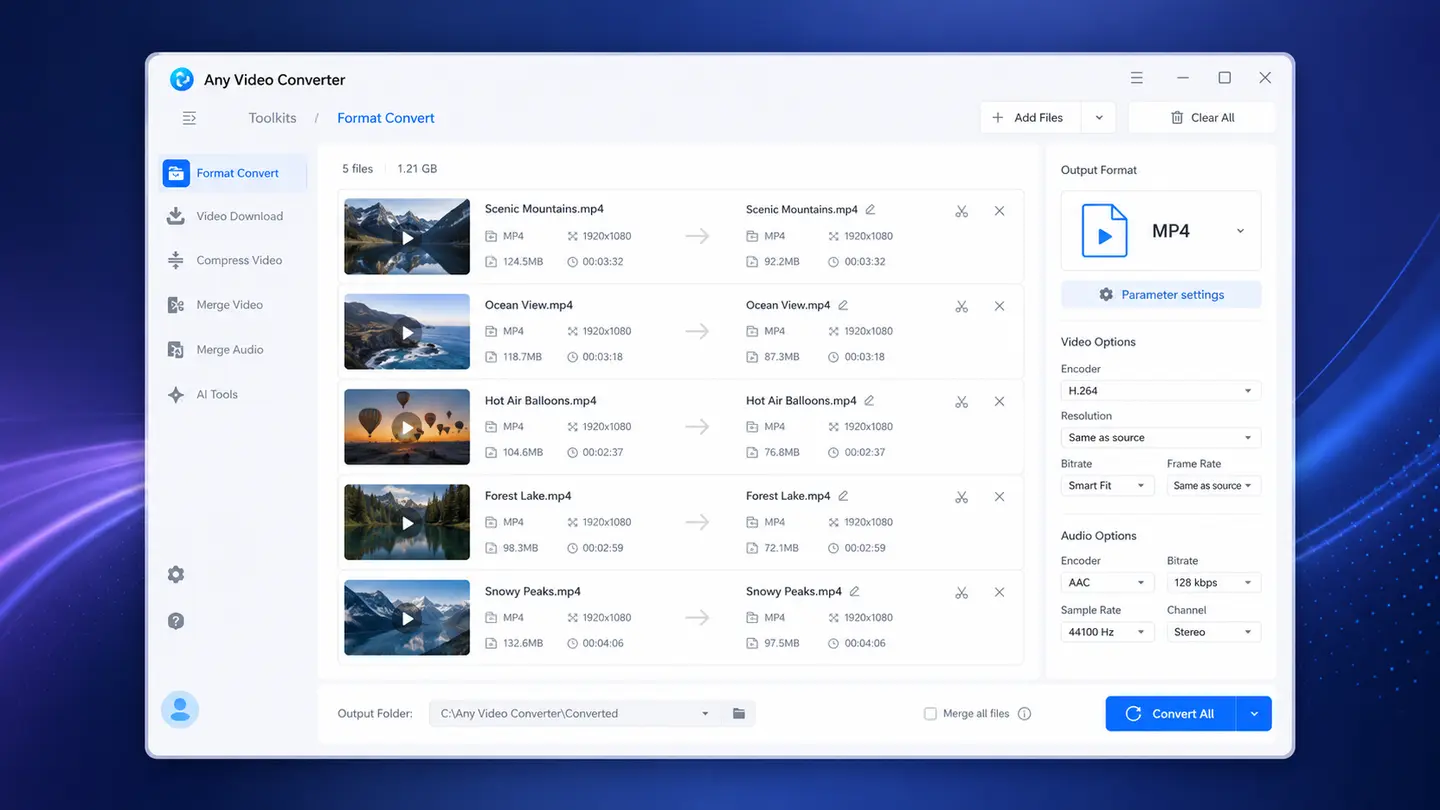
Run Any Video Converter and click the "Format Convert" tool, then browse to add the video files you would like to convert to MP3.

Step 2: Choose "MP3" as the Output Format

In the output profile settings, select "MP3" as the desired output format. Additionally, customize the audio quality by choosing the appropriate bitrate and sample rate.

Step 3: Start to Convert Video to MP3

Click the "Convert Now" button to begin the process of converting video to MP3.

Learn More about How to Convert Video to MP3 more

Wanna Convert Video to Other Audio or Video Formats?

What's More

Not just Video to MP3 Converter: More Tools Are Ready for You

What's Next After Converting Video to MP3?
Basic Tools
AI Tools
trim video with AI

Auto Trim

Auto Trim

Automatically analyze the scenes and split a video into multiple segments.

arrow right
speech to text

Speech to Text

Speech to Text

Convert the audio to text with AI transcription, with 99% accuracy.

arrow right
vocal remover

Vocal Remover

Vocal Remover

Remove vocals and instruments from a song to create a karaoke or a cappella version.

arrow right
video enhancer

Video Enhancer

Video Enhancer

Improve the quality of old videos and increase the resolution to 1080p, 4K, and 8K.

arrow right
trim video

Trim Video

Trim Video

Trim to delete unwanted parts from a lengthy video and split a video into clips.

arrow right
compress video

Compress Video

Compress Video

Compress to reduce the large-sized video to a smaller one.

arrow right
merge video

Merge Videos

Merge Videos

Combine to merge multiple video clips or audio files into one file.

arrow right
crop Video

Crop Video

Crop Video

Remove unwanted edges and focus on the key area of the video.

arrow right
record screen

Record Screen

Record Screen

Record to capture the screen and any activities on your desktop, in 1080p and 4K quality.

arrow right
add watermark

Add Watermark

Add Watermark

Add the image and text watermark onto the video to protect the copyright of your content.

arrow right
add subtiles

Add Subtitles

Add Subtitles

Add the external .srt subtitles to the video and interact with the Speech to Text tool.

arrow right
add music

Add Music

Add Music

Add the background music to the video, and try our Vocal Remover and Track Editor tool to customize your music.

arrow right
video overlay

video overlay

Video Overlay

Overlay one video on top of another to create engaging picture-in-picture effects.

arrow right

Any Video Converter Free vs. Pro. vs. Ultimate

Any Video Converter Free Pro. Ultimate
Format Convert

Convert between various video and audio formats.

yes yes yes
Video Download

Download videos from various online platforms.

Default settings Custom settings Concurrent download
Video Enhancement

Upscale low-res video to HD, 4K, and enhance video quality.

Watermarked Watermarked HD, 4K, and 8K & unwatermarked
Speech to Text

Convert speech from videos or audio to text.

Basic model Multilingual Advanced AI Model (99% accuracy)
AI Audio Splitter

Extract vocals or instruments from audio with AI.

yes
Preset

Preset options for common conversion and download settings.

yes yes
Video Editing

Basic video editing, including trimming, cropping, and merging.

yes yes yes
Video Compress

Video compression to reduce file size while maintaining quality.

yes yes yes
Merge Video

Combine multiple video clips into one.

5 video limit (per merge) Unlimited Unlimited
Screen Record

Capture your computer screen, full screen or region.

3-minute Unlimited, HD Quality Unlimited, 4K Quality
DVD Burning

Burn videos to DVD discs, including menu creation.

yes yes
Workflow

Customize batch processing workflows for improved efficiency.

yes
Ad-Free

No upgrade prompts.

yes
Parallel Task Processing

Allow multiple download tasks to run concurrently.

yes
Price
Free $19.95 $29.95
Try
Free Download Free Download Free Download Upgrade Now Upgrade Now

Read Our Customers Say about Video to MP3 Converter

Read More Reviews more

Video to MP3 Converter: Dependable and User-friendly

The highly trusted video to MP3 converter allows you to convert both local and online videos to MP3 for free.

Frequently Asked Questions about Video to MP3 Converter

1. How to convert video to MP3 for free?

To convert video to MP3 for free, you can use the Format Convert tool of Any Video Converter. Simply add your video files, select MP3 as the output format, adjust the audio settings, and click Convert Now to start converting. Since the conversion runs on your desktop, you do not need to upload videos online, which is useful for large files, personal videos, and batch conversion.

Step 1: Add your video files

Open Any Video Converter, choose Format Convert tool, then click Add Media File(s) to import your videos.

Step 2: Select MP3 as the output format

Choose MP3 from the output format list. You can customize audio bitrate, sample rate, encoder, and audio channels if needed.

Step 3: Start the free conversion

Click Convert Now to convert your videos to MP3 for free. Once completed, you can open the output directory to find the converted MP3 audio files.

2. What is the best free video to MP3 converter?

The best free video to MP3 converter should be easier to use, support a wide range of video formats, convert large files without online upload limits, and allow users to adjust audio settings such as bitrate, sample rate, and channels. For those who want a free desktop solution, Any Video Converter is a practical choice because it can convert videos to MP3 locally, in batch, without any hidden or upgrade fees.

With Any Video Converter, you can import videos such as MP4, MOV, MKV, AVI, WebM, DVD, VOB, and more, then choose MP3 as the output format, and click Convert Now to extract audio from your videos for free.

3. How do I convert MP4 to MP3?

The easiest way to convert MP4 to MP3 is to use a video to audio converter, whether the online or desktop version. With Any Video Converter, you can extract MP3 audio from an MP4 video in a few clicks without uploading the file online.

Step 1: Open Format Convert and add your MP4 videos.

Step 2: Choose MP3 as the output format.

Step 3: Click Convert Now to save the audio as an MP3 file.

This is especially helpful for long videos, personal files, lectures, interviews, music videos, podcasts, and batch MP4 to MP3 conversion.

4. Can I convert a video to MP3 without installing software?

Yes. You can use an online video to MP3 converter to extract MP3 audio from a video directly in your browser without installing software. This is convenient for small files and quick one-time conversions. However, online converters often have file size limits, daily usage limits, slower upload speeds, and privacy concerns because your video must be uploaded to a server.

For large videos, personal files, or batch video to MP3 conversion, Any Video Converter is a more practical option. It runs on your desktop, converts files locally, and lets you convert videos to MP3 without any restrictions or fees.

5. Can I convert YouTube videos to MP3?

Yes, you can convert YouTube videos to MP3 when you have the right to download and use the content, such as your own videos, licensed videos, or videos that are legally available for download. With Any Video Converter, you can use the Download Video tool to save supported online videos and then convert them to MP3.

6. Does converting video to MP3 reduce quality?

Yes, converting video to MP3 can reduce audio quality because MP3 is a lossy audio format. It compresses audio to create a smaller file, so some audio details may be discarded during compression. In most cases, the quality loss is not obvious if you choose a higher bitrate, such as 192 kbps, 256 kbps, or 320 kbps. Keep in mind that choosing a higher bitrate cannot improve audio that is already of low quality.

With Any Video Converter, you can adjust the MP3 bitrate, sample rate, encoder, and audio channels before conversion to balance sound quality and file size. If you want to preserve audio quality as much as possible, choose a higher-bitrate MP3 setting such as 320 kbps, or use a lossless audio format such as WAV or FLAC. If you do not need MP3 specifically, you can also use audio passthrough to keep the original audio stream without re-encoding.

7. What bitrate should I choose for MP3?

This depends on how you plan to use the converted audio. A higher bitrate usually provides better sound quality, but is larger in size.

For most users, 192 kbps is a good balance between sound quality and file size. If you are converting music, videos with rich sound, or audio for further editing, choose 256 kbps or 320 kbps for better quality. For voice-only content such as lectures, interviews, audiobooks, or podcasts, 128 kbps or 192 kbps is usually enough.

With Any Video Converter, you can choose the MP3 bitrate before conversion based on whether you prefer a smaller file size or higher audio quality.

8. Can I convert large video files to MP3?

Yes, you can convert large video files to MP3, but a desktop video to audio converter is usually better than an online tool for large files. Many online converters have upload size limits, slow upload speeds, or require a paid plan to process large videos.

With Any Video Converter, you can convert large video files to MP3 locally on your computer without uploading them online. You can add very large videos, such as 20GB files, as long as your computer has enough storage space and system resources.

9. Can I batch convert videos to MP3?

Yes, you can batch convert videos to MP3 with Any Video Converter. It allows you to add multiple video files or import an entire folder, choose MP3 as the output format, and convert them all in one batch.

Batch conversion is useful when you need to extract audio from many videos, such as lectures, interviews, music videos, podcasts, webinars, or recorded meetings.

10. How to separate vocals from music in a video and convert it to MP3?

You can separate vocals from music in a video by using an AI audio splitter, then export the separated audio as an MP3 file. With Any Video Converter, you can use the AI Audio Splitter tool to isolate vocals, background music, or instrumental tracks from a video, and then save the result as MP3.

Step 1: Add your video to the AI Audio Splitter.

Step 2: Choose the audio stem you want to extract, such as vocals or instrumental music.

Step 3: Export the separated audio track as an MP3 file.

Get Ahead with Our Sub-brand’s AI Tools

video enhancer aiAVCLabs Video Enhancer AI

The best AI video restoration software to improve the quality of your old VHS videos, old films, and TV shows, and bring your vintage media back to life with professional-grade results.

video blur aiAVCLabs Video Blur AI

Four automatic ways are supported to help you blur face in video, blur video background, blur license plates, and blur any parts, reducing 99% of video blurring work, with 99% accuracy.