


AVI files often come from older cameras, downloads, screen recordings, or saved video archives. Even if the video itself is fine, the original AVI codec may not work well on phones, browsers, TVs, or editing apps. Convert AVI to MP4 online to make the video easier to open, upload, share, and keep for everyday use.
AVI to MP4 Converter Online
Turn AVI videos into MP4 files that open more easily on phones, browsers, TVs, and editing apps.
- Convert old or hard-to-open AVI videos to MP4 for modern playback
- Choose MP4 resolution, video codec, and audio quality before conversion
- Use the desktop version for large AVI files, advanced options, and saved presets
Try the desktop version to convert locally, save MP4 presets, and manage AVI to MP4 tasks with more control.
Online AVI to MP4 Converter
Upload an AVI file, choose MP4 settings, and download an MP4 file for easier playback and sharing
Uploaded Video
-
Output Video
MP4 Video
Add an AVI video to start MP4 conversion.
Converting
Preparing file...
Preparing MP4 conversion...
Convert AVI to MP4 for Easier Playback
Make AVI videos easier to open, share, and edit
AVI files can be large, especially when they come from older cameras, screen captures, or saved video collections. Converting AVI to MP4 helps create a lighter, more practical copy while keeping the video clear enough for viewing, sharing, or uploading.
A quick online AVI to MP4 conversion works well for one file. For long recordings, old video folders, or repeated export tasks, Any Video Converter lets you process AVI files locally, save MP4 presets, and manage batch conversion more efficiently on Windows or Mac.

AVI to MP4

MP4 Settings

Batch AVI to MP4
How to Convert AVI to MP4 Online
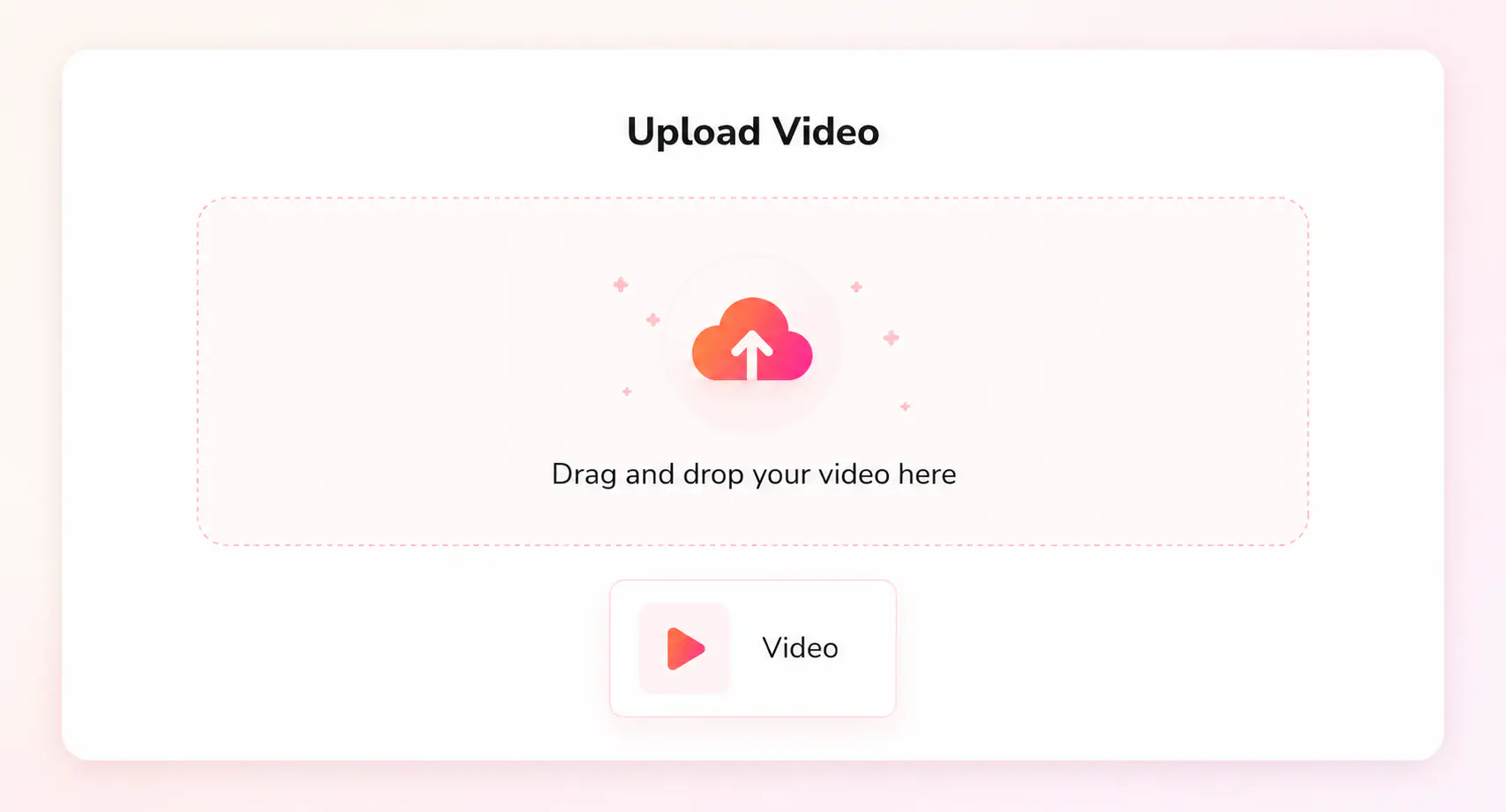
Click “Upload a Video” and add an AVI file.
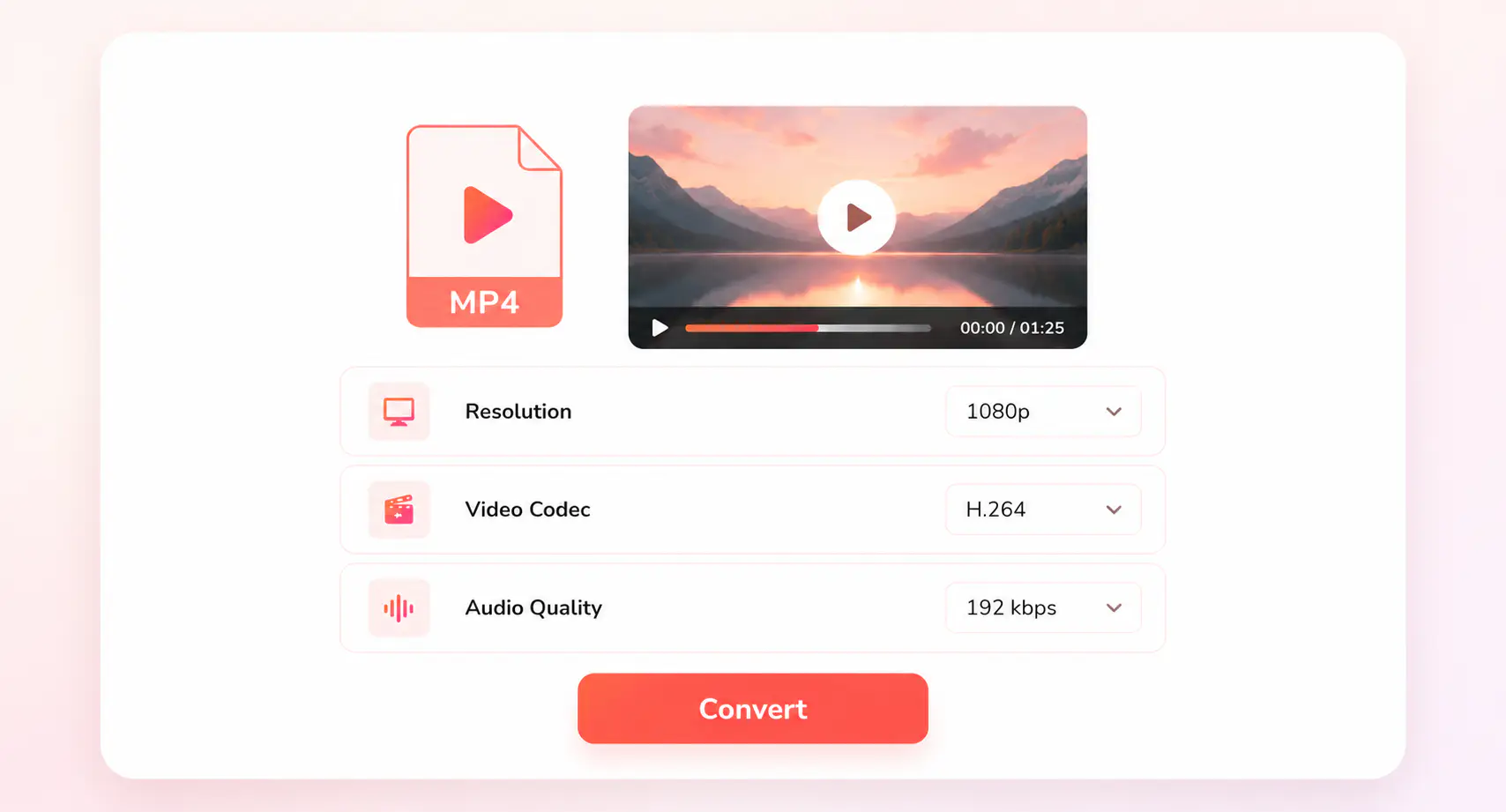
Select MP4 as the output format, then choose resolution, video codec, and audio quality.
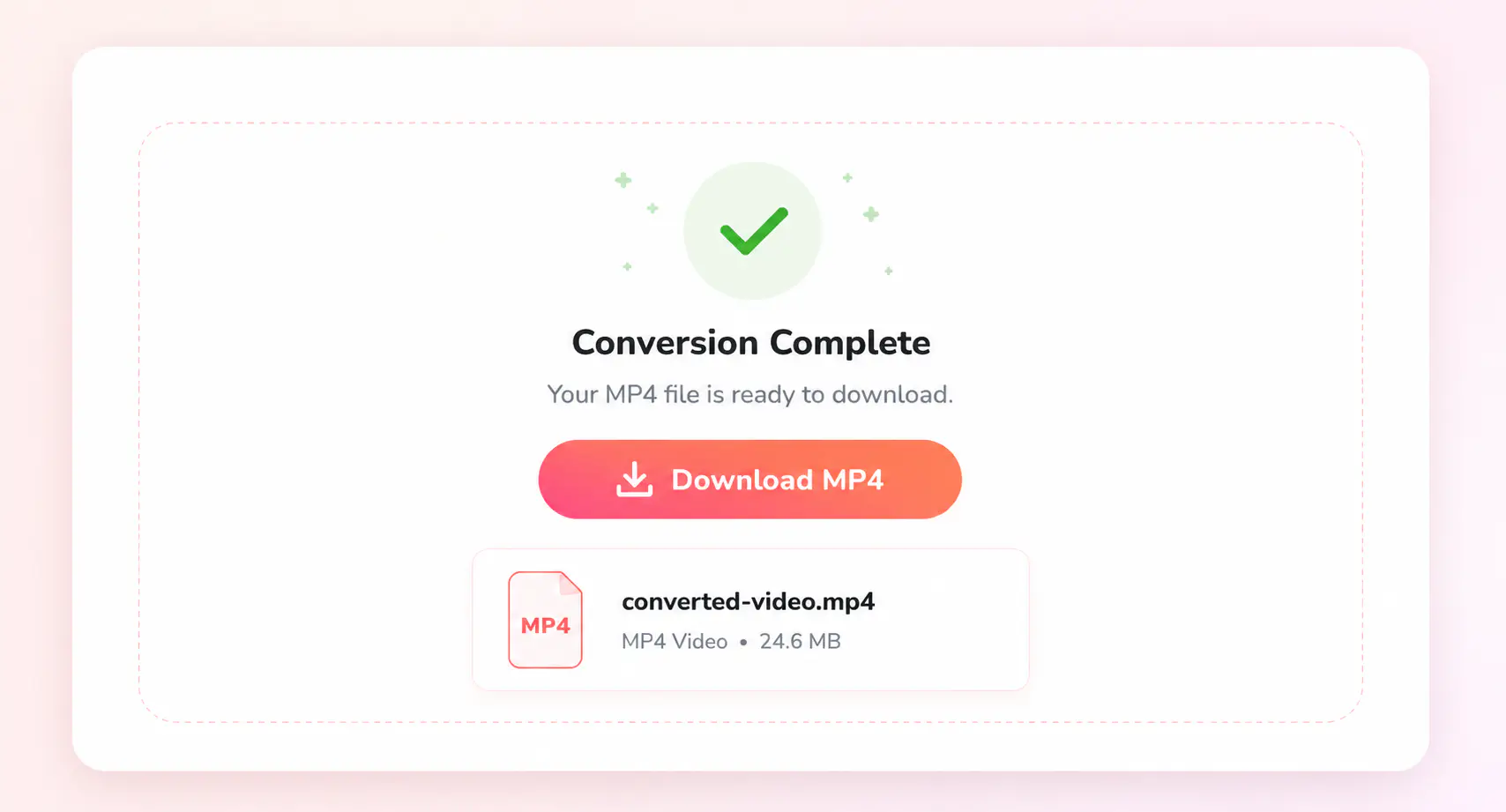
Run the AVI to MP4 conversion, then download the finished MP4 file once it is ready.
Need to Convert Another Video Format?
Find related video format converters for AVI, MP4, MOV, MKV, WebM, DVD, and more
Explore More MP4 Conversion SolutionsBring AVI Conversion to Your Desktop
Convert long AVI videos, old video folders, and repeat MP4 exports locally on Windows or Mac
FAQs about AVI to MP4 Converter
Quick answers about converting AVI to MP4
What is the easiest way to convert AVI to MP4?
The easiest way is to upload your AVI video to an online converter and save it as MP4. This is useful when you just need a playable copy of an AVI file without installing software or changing too many settings.
Why does my AVI file play on one device but not another?
AVI is a video container, and different AVI files can use different video or audio codecs. That is why one AVI file may play normally while another fails to open, has no sound, or cannot be uploaded. Converting AVI to MP4 with a common codec such as H.264 can make the video more predictable across modern devices and apps.
Can I convert AVI to MP4 online for free?
Yes. You can convert AVI to MP4 online for free by uploading your video and downloading the converted MP4 file. The online tool is best when you want a quick MP4 copy for playback, uploading, or sharing.
Will converting AVI to MP4 improve video quality?
Not by itself. AVI to MP4 conversion mainly improves compatibility, not the original picture quality. If the AVI video is already low-resolution, blurry, or compressed, the MP4 will not restore lost detail. The best approach is to keep the output close to the source quality while avoiding unnecessary compression.
Which codec should I choose for AVI to MP4?
H.264 is the best default for most AVI to MP4 conversions because it offers broad support across phones, browsers, TVs, editors, and media players. HEVC can create smaller files, but it is better when you know your target device supports it. For most everyday AVI files, H.264 is the safer choice.
When is a desktop AVI to MP4 converter a better choice?
Choose the desktop converter when you are working with old video folders, long recordings, or several AVI files that need the same MP4 settings. Any Video Converter processes AVI files locally on Windows or Mac, making it easier to keep files on your computer, reuse output settings, and clean up video archives more efficiently.