Convert Videos Without Size or Usage Limits
Any Video Converter is the best free video converter that enables users to convert videos to various popular video formats, including MP4, MOV, AVI, MKV, WMV, TS, WEBM, and MPG. Unlike many other free converters, it imposes no restrictions on the number of conversions or the size of uploaded files, offering users a free and effective solution.


Video Tutorial: Convert Old Videos to Playable Formats
Highlights of the Video Converter Tool of Any Video Converter
1. 100% Free. No limits on video count, length, or size.
2. Extensive Format Support. Convert 1000+ video and audio formats into your desired formats.
3. Optimized Profiles & Custom Presets. Choose from optimized profiles for video, audio, and devices, or create custom presets to save your preferred configurations.
4. Fast Conversion. Enable Fast Conversion mode to convert videos up to 130X faster.
4. Advanced Options. Give users more control over settings such as deinterlacing, encoding passes, scaling mode, bitrate, frame rate, and the denoise and sharpen filters.
How to Quickly Convert Videos to Other Formats for Free
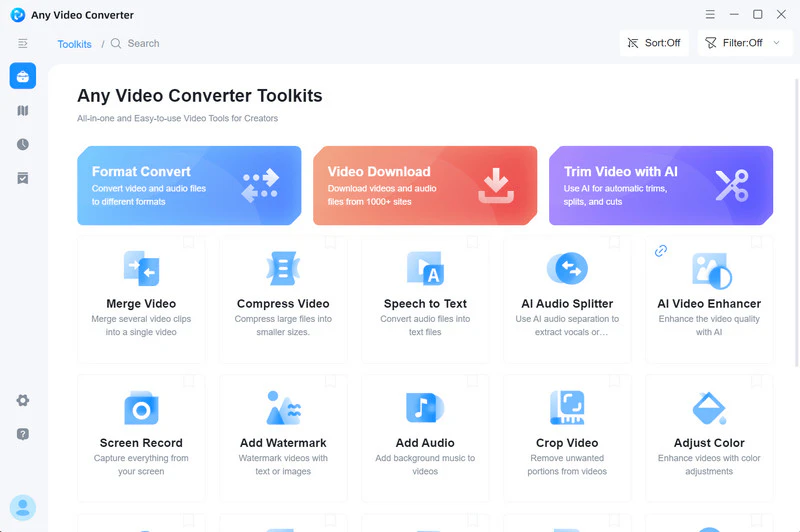
Step 1 Open the "Format Convert" Tool
To get started, click the download button above to get the installer. Once installed, launch Any Video Converter and select the 'Format Convert' tool, the first one in the toolkit list.
Step 2 Upload Videos or an Entire Folder
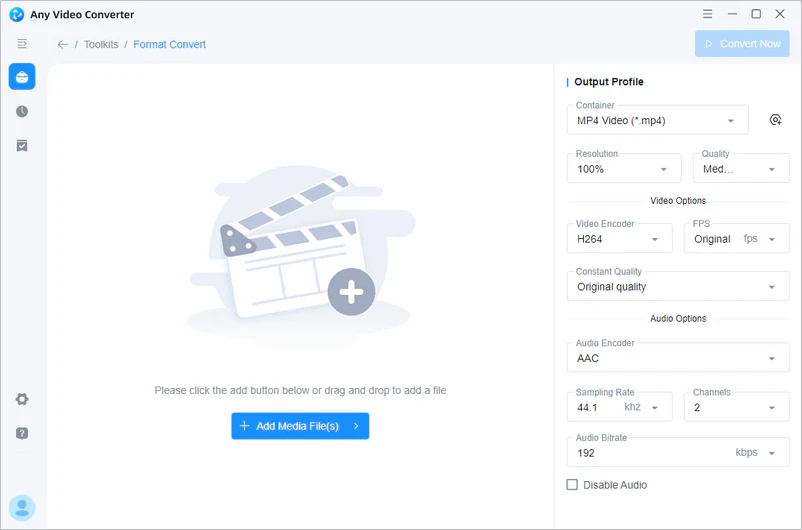
Click 'Add Media File(s)' to browse and select one or more videos from your computer.
Or click the ' ' next to "Add Media Files(s)" to import an entire folder for batch conversion to MP4 or other formats.
Step 3 Customize Output Preference
Under 'Output Profile', you can configure video, audio, and device-specific settings.
⭐ Note: If your required format isn't listed, please don't hesitate to contact our support team. We're happy to consider adding support for it!
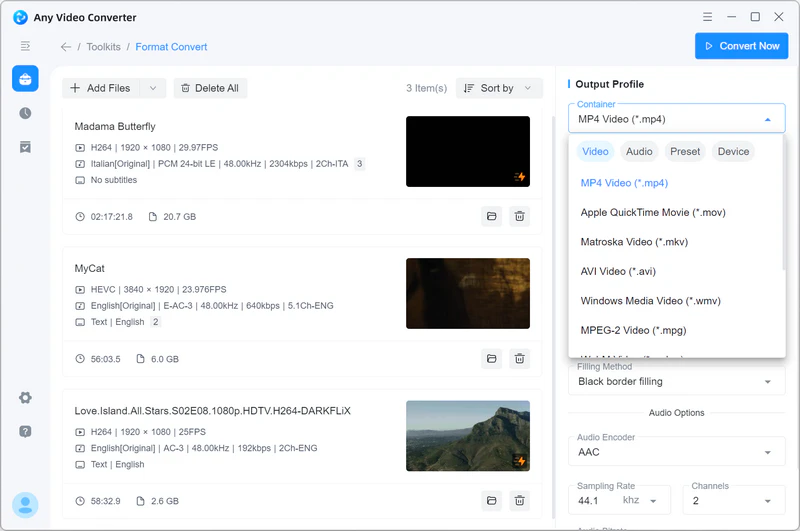
- Video Format. Click 'Container' to select a video format, such as MP4, MKV, MOV, AVI, TS, WMV, FLV, WEBM, or MPG.
- Resolution. Set the output resolution by 'Percentage' or 'Custom Dimensions (W*H).
- Video Encoder. Set the video codec to Auto (Match Source), H264, HEVC, AV1, or MPEG.
- FPS. Choose 'Original,' a preset, or enter a custom frame rate.
- Video Bitrate. Apply the recommended bitrate or select a specific one.
- Audio Options. Select Audio Encoder, Sampling Rate, Channels, Audio Bitrate, or Disable Audio.
- Advanced Options. Adjust the settings you need — scan type, aspect ratio, scaling mode, bitrate mode (VBR or CBR), encoding passes, frame rate mode (CFR or VFR), denoise, deblock, sharpen, and color space.
Step 4 Start the Video Conversion
Click 'Convert Now' to start. With built-in GPU acceleration, your conversion will be up to 130x faster.
Tip: GPU acceleration is useful when re-encoding is required, but Fast Conversion may be quicker when the original streams can be kept. Read the Fast Conversion vs GPU Acceleration guide.
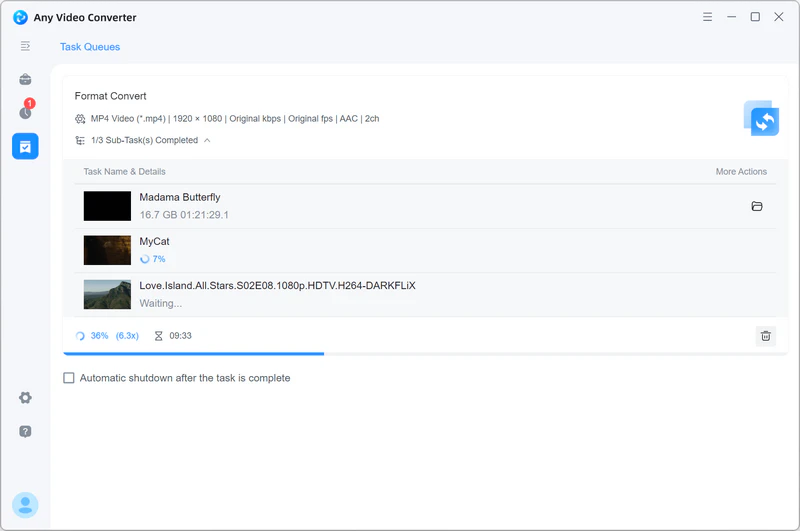
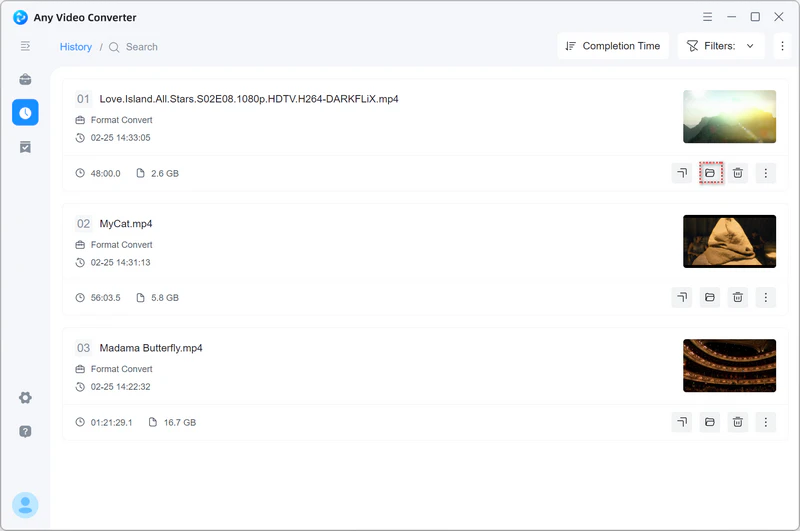
Once the conversion is finished, go to the left menu bar and click the ' ' button, then click the '
 ' icon to locate your converted files.