
Video Download Failure Troubleshooting: Resume the File Rename Permission
Q: I encountered a permission issue while downloading. How to fix?
A: The program requires permission to rename the temp file while downloading. The permission issue may cause a download error. You can follow the solutions below to resolve this error:
1. Change the file save location to a directory outside of the C drive
Some systems may have restrictions on file modifications within the C drive. Moving the download location to another drive or folder with fewer restrictions can help resolve permission issues.
Go to "Settings" → "File Save Location", and browse to select a new output directory.
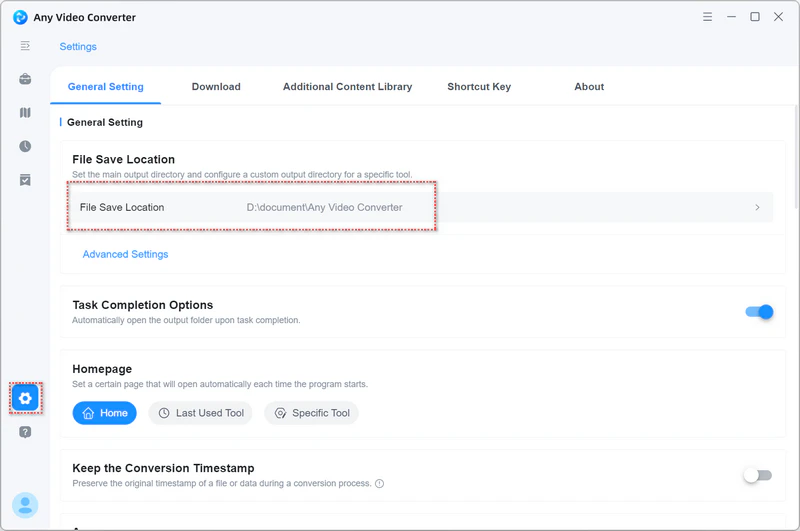
Retry the download to see if the issue is resolved. If it persists, proceed with the following solutions:
2. Check if any security software is limiting access to this folder
If access is restricted, adjust the settings in your security software to allow full access to the folder.
3. Enable full control permissions for this folder
Step 1: Right-click on the folder and select "Properties", and go to the "Security" tab.
Step 2: Click on "Edit" to change permissions, and ensure that "Full Control" is checked.
Step 3: Click "Apply" and then "OK" to confirm the changes.
What should I do if the problem persists?
If the issue continues after following the troubleshooting solutions above, please reach out to our support team for further assistance. Here's how to report the problem:
1. Open the Help Center: Click  icon, then select "Feedback" to open the feedback form.
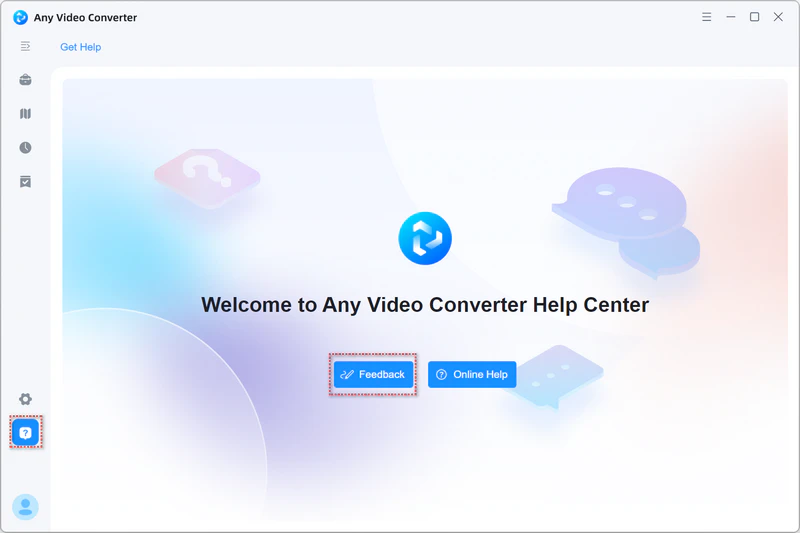
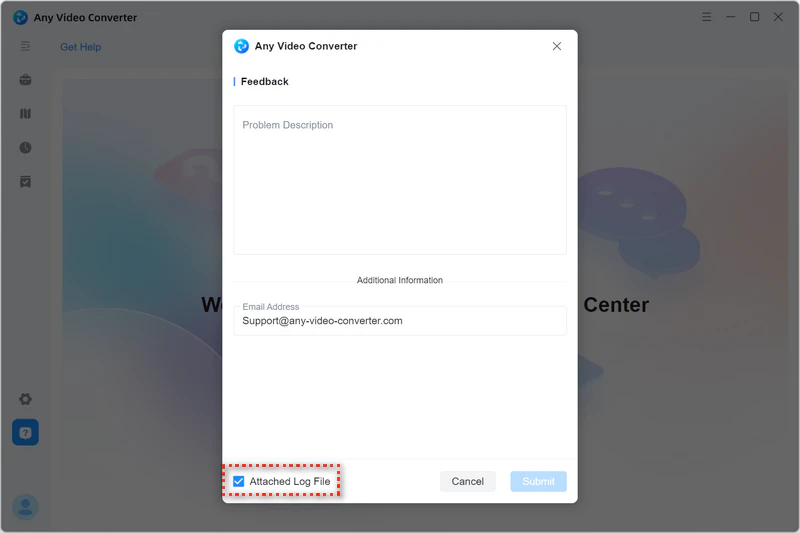
2. Describe the Issue: Provide a detailed description of the problem you're experiencing.
3. Provide Your Email: Enter the email address you use for communication. This ensures we can get back to you.
4. Attach the Log File: Make sure to check the box for "Attached Log File".
5. Submit. After filling out the form with the necessary information, click the "Submit" button to submit the bug report to our support team.
 Video Download Tutorials